CATEGORIES

SEARCH GAMES

CATEGORIES

SEARCH GAMES

Chess of Blades by Argent Games APK FULL
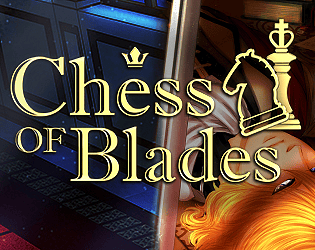
Chess of Blades by Argent Games APK FULL APK vFinal Download for Android
ARMv7 ARM64
Argent Games
☆☆☆☆☆ 0.0 (0)
Android 7+ and up vFinal 627M Dec 23, 2025 PLAY STORE
LOGIN TO DOWNLOAD

MOD FEATURES

  • FULL GAME

DESCRIPTION

Chess of Blades is a medieval fantasy mystery visual novel featuring Rivian Varrison, an introverted nobleman’s son thrust into social intrigue during his king’s five-day birthday celebration culminating in a grand masquerade ball. When mysterious crime disrupts the second day’s festivities, Rivian finds himself entangled in criminal investigation while navigating relationships with enigmatic characters harboring hidden agendas.

The fully voice-acted narrative spans 125,000 words across three primary romance routes plus one unlockable side romance, delivering twelve-plus hours of gameplay through branching storylines. Players navigate social encounters, solve mysteries, and uncover character secrets through dialogue choices leading toward nine distinct endings. The comedy-infused fantasy adventure features thirty CGs illustrating key story moments and romantic developments. Both PG-13 and R-18 versions provide complete narrative experiences with age-appropriate content adjustments. Three dateable characters offer unique personality dynamics and story arcs, while the hidden fourth romance option rewards thorough exploration.

Voice performances bring personality depth to cast members throughout investigation sequences and character interactions. Mystery elements interweave with relationship building as players uncover conspiracies threatening the celebration while developing romantic connections. Choice consequences affect investigation outcomes, relationship trajectories, and ending variations across multiple playthroughs revealing different story perspectives.

RATE THIS GAME

How would you rate this game?

MORE INFO

Download APK, Install it and play

TROUBLESHOOTING GUIDE

🔧 Installation Issues

❌ "App Not Installed" Error

What causes this error?
  • Insufficient storage space
  • Conflicting app signatures
  • Corrupted APK file
  • Incompatible Android version
  • Existing app conflict
Solution 1: Free Up Storage Space
  1. Go to Settings → Storage
  2. Delete unused apps, photos, or videos
  3. Clear cache: Settings → Apps → [App Name] → Clear Cache
  4. Requirement: At least 2-3x the APK file size in free space
Solution 2: Uninstall Existing Version
  1. Go to Settings → Apps → [App Name] → Uninstall
  2. ⚠️ Warning: This deletes all app data unless backed up
  3. After uninstalling, restart your device
  4. Install the new APK
Solution 3: Enable Unknown Sources

For Android 13/14/15:

  1. Download the APK file
  2. Tap on the APK to install
  3. When blocked, tap "Settings" in the error dialog
  4. Enable "Allow from this source"
  5. Go back and tap the APK again

For Android 11/12:

  1. Settings → Apps → Special App Access
  2. Tap "Install unknown apps"
  3. Select your browser or file manager
  4. Enable "Allow from this source"

For Android 8/9/10:

  1. Settings → Security & Privacy
  2. Enable "Unknown Sources"
  3. Or: Settings → Apps → Special Access → Install unknown apps
Solution 4: Re-download APK
  • Delete the current APK file
  • Clear browser cache
  • Download from a trusted source again
  • Verify file size matches the original

📦 "Package Appears to be Invalid" Error

Causes:
  • Corrupted download
  • Incomplete APK file
  • Wrong architecture (ARM vs ARM64)
Solutions:
  1. Re-download from trusted source
  2. Verify file size - Compare with the original
  3. Check device architecture:
    • Most modern phones: ARM64-v8a
    • Older phones: armeabi-v7a
  4. Use a different browser to download

🔒 "Parse Error" / "There was a problem parsing the package"

Causes:
  • APK file is corrupted
  • Incompatible with your Android version
  • Downloaded file is incomplete
Solutions:
  1. Re-download the APK from official source
  2. Check minimum Android version requirements
  3. Enable installation from unknown sources
  4. Clear Package Installer cache:
    • Settings → Apps → Package Installer
    • Storage & Cache → Clear Cache

📵 Google Play Protect Blocking Installation

Solution:
  1. Play Store → Profile Icon (top right)
  2. Play Protect → Settings (gear icon)
  3. Turn off "Scan apps with Play Protect"
  4. Install the APK
  5. ⚠️ Re-enable Play Protect after installation

🎮 MOD Menu Issues

🔍 MOD Menu Not Showing

Primary Cause: Missing Display Over Other Apps (Overlay) Permission

Enable Overlay Permission (Android 12-15) For Most Devices:
  1. Settings → Apps
  2. Tap 3-dot menu (⋮) in top-right corner
  3. Select "Special app access" or "Special access"
  4. Tap "Display over other apps" or "Appear on top"
  5. Find your game/app in the list
  6. Enable the toggle switch
For Samsung Devices:
  1. Settings → Apps
  2. Tap 3-dot menu (⋮) in top-right corner
  3. "Special access"
  4. "Appear on top"
  5. Find your game and enable it
For Xiaomi/Redmi/POCO (MIUI/HyperOS):
  1. Settings → Privacy Protection
  2. Special Permissions
  3. Display over other apps
  4. Find your game and enable it
For OnePlus/Oppo/Realme (ColorOS):
  1. Settings → App Management
  2. App List → Select your game
  3. Permissions
  4. Display over other apps → Enable

⚠️ "Restricted Settings" Warning (Android 13+)

IMPORTANT: This is a NEW security feature that blocks sideloaded apps from using certain permissions.

Solution - Enable Restricted Settings: Step 1: Trigger the Warning
  1. Try to enable "Display over other apps" permission
  2. You'll see: "For your security, this setting is currently unavailable"
Step 2: Allow Restricted Settings
  1. Close the permission dialog
  2. Go to Settings → Apps
  3. Find and tap on your game/app
  4. Tap the 3-dot menu (⋮) in top-right corner
  5. Select "Allow restricted settings"
  6. Enter your PIN/password/biometric
Step 3: Enable the Permission
  1. Go back to Display over other apps
  2. Now you can enable it successfully

⚠️ CRITICAL: The 3-dot menu only appears after you've triggered the "restricted settings" warning first!

Alternative if 3-Dot Menu Missing:
  1. Open the game/app first
  2. Close it completely (swipe away from recent apps)
  3. Long-press app icon → "App Info"
  4. The 3-dot menu should now appear

🔄 MOD Menu Appears Then Disappears

Causes:
  • Overlay permission not properly granted
  • Game has anti-cheat detecting mod menu
  • Conflicting apps using overlay
Solutions:
  1. Double-check overlay permission is enabled
  2. Restart your device after enabling permission
  3. Close other apps using overlay (Facebook Messenger, screen filters, etc.)
  4. Clear game cache: Settings → Apps → [Game] → Storage → Clear Cache
  5. Reinstall the MOD APK

🎯 MOD Features Not Working

Common Issues:
  1. Server-side game - Cannot be modded (online verification)
  2. Anti-cheat protection - Game detects modifications
  3. Wrong MOD version - Doesn't match game version
  4. Root required - Some MODs need rooted device
Solutions:
  • Check if game is online-only (MODs won't work)
  • Download MOD for correct game version
  • Enable all required permissions
  • Try offline mode if available

📱 Display Over Other Apps Permission (Quick Reference)

Android Version Path
Android 15 Settings → Apps → [App] → 3-dots → Allow restricted settings → Display over other apps
Android 13/14 Settings → Apps → Special app access → Display over other apps
Android 11/12 Settings → Apps → Special app access → Display over other apps
Android 8/9/10 Settings → Apps → Special access → Appear on top
Manufacturer-Specific Paths:
  • Samsung: Settings → Apps → ⋮ → Special access → Appear on top
  • Xiaomi/Redmi/POCO: Settings → Privacy Protection → Special Permissions → Display over other apps
  • OnePlus/Oppo: Settings → App Management → [App] → Permissions → Display over other apps
  • Huawei: Settings → Apps → Special access → Display over other apps

📂 OBB / Data File Issues

📦 Game Requires OBB Files

What are OBB files? Additional data files required by some large games (usually 500MB+). Installation Steps:
  1. Download both APK and OBB file
  2. Install APK first
  3. Extract OBB file if it's in .zip format
  4. Move OBB folder to: Internal Storage/Android/obb/[com.package.name]/
  5. The folder name must match the package name exactly
  6. Launch the game

Example: • Game: PUBG Mobile • Package: com.tencent.ig • OBB Location: Android/obb/com.tencent.ig/main.123456.com.tencent.ig.obb


🛠️ General Troubleshooting

🔄 Installation Hangs or Freezes

Solutions:
  1. Wait 5-10 minutes (large files take time)
  2. Restart your device
  3. Clear Package Installer data: Settings → Apps → Package Installer → Storage → Clear Data
  4. Install via file manager instead of browser
  5. Check available storage (need 2-3x APK size)

⚡ App Crashes After Installation

Causes:
  • Missing OBB data
  • Incompatible device
  • Conflicting apps
  • Corrupted installation
Solutions:
  1. Check if OBB files required (download and install)
  2. Clear app data: Settings → Apps → [App] → Storage → Clear Data
  3. Reinstall completely: Uninstall → Restart device → Reinstall
  4. Check device compatibility (CPU, RAM, Android version)
  5. Close background apps before launching

🔐 Signature Verification Failed

Cause: Different signing key than original app Solutions:
  1. Uninstall original app completely
  2. Install MOD APK as fresh installation
  3. Don't try to update MOD APKs from Play Store
  4. Download updates from the same MOD source

❓ Common Questions

Q: Is it safe to enable Unknown Sources? A: Yes, if you download from trusted sources only. Disable it after installing if concerned about security. Q: Why does my phone say "For your security..."? A: This is Android 13+ "Restricted Settings" feature. Follow the 3-dot menu method above to allow it. Q: Can I install MOD and original app together? A: Usually no, as they have the same package name. You need parallel space/cloning apps for dual installation. Q: Will I get banned for using MOD APKs? A: Possible in online/multiplayer games. Use at your own risk. Single-player offline games are generally safer. Q: Do I need root for MOD APKs? A: Most MODs don't require root. Check the MOD description - if it says "Root Required," you'll need a rooted device. Q: Why can't I update MOD from Play Store? A: MOD APKs have different signatures. You must download updates from the same MOD source. Q: How do I know if a MOD is safe? A:
  • Download from reputable sites only
  • Check user reviews and comments
  • Scan with VirusTotal.com before installing
  • Check file size matches the original


Last Updated: December 2024 Compatible with: Android 8.0 - Android 15

This guide covers 95% of common APK and MOD installation issues. For device-specific problems, consult your manufacturer's support documentation.

REPORT ISSUE

Please login to report issues.